Si manejas un negocio de servicios de entre 1 y 25 personas, probablemente ya pegaste en la pared. El calendario en pizarrón, el despacho por mensaje, el sistema de QuickBooks más otras cinco apps pegadas con cinta. En algún punto deja de escalar y empiezas a buscar software de gestión de servicios de campo.
Aquí está el problema: casi todos los consejos sobre “cómo elegir este software” son una lista de funciones escrita por alguien que nunca intentó implementar una herramienta nueva con una cuadrilla que no quiere usarla. Las listas de funciones son la parte fácil. Vamos a hablar de las partes que de verdad deciden si esto funciona.
Esto está escrito tanto para el dueño que opera todo desde la cabina de su camioneta como para el que ya tiene gerente de oficina y un equipo pequeño en campo. Lo que está en juego es distinto, pero el marco de decisión es el mismo.
Empieza por la pregunta que casi nadie hace: ¿qué tipo de trabajos haces realmente?
Este es el filtro más importante, y es el que los compradores se saltan.
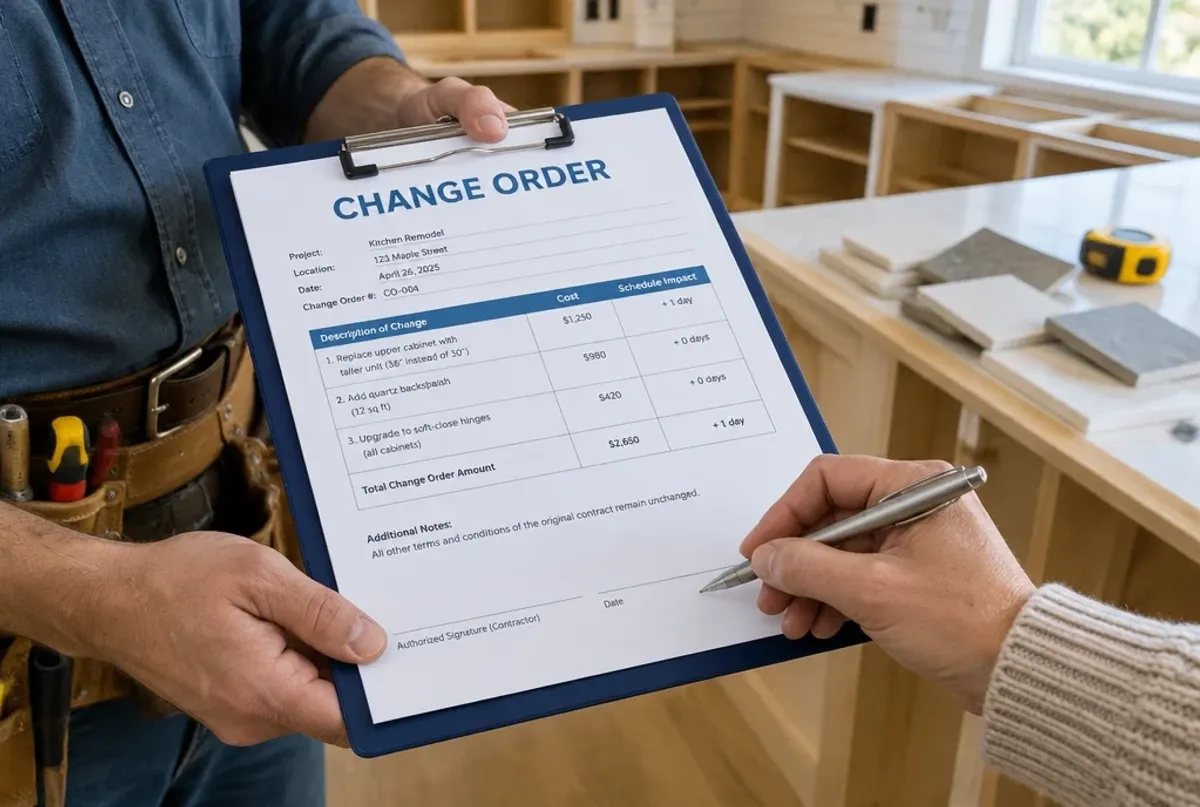
Hay dos grandes familias de trabajo de servicio, y casi todo el software está construido en secreto para una de ellas. Trabajo de servicio rápido: control de plagas, limpieza básica, reparaciones de un día, corte de césped. El trabajo se agenda, se hace y se factura dentro del mismo día. El software optimiza volumen: meter más paradas en una ruta, cerrar tickets rápido, seguir adelante. Trabajo por proyecto: remodelación, terrazas y cercas, recubrimiento de concreto, solar, construcciones grandes de paisajismo. Duran días o semanas, implican contratos, órdenes de cambio, pagos por avance, seguimiento de materiales y varias visitas de cuadrilla. Una instalación de terraza de 20 000 dólares no tiene casi nada en común, operativamente, con un tratamiento de césped de 90.
Casi todo el software para contratistas está hecho en silencio para el modelo de servicio rápido. Si haces trabajo por proyecto y compras una herramienta optimizada para rotación veloz de tickets, vas a pasar el siguiente año peleando con ella: embutiendo trabajos de varias semanas en un sistema que asume que todo cierra el mismo día, y pegándole hojas de cálculo para lo que no puede manejar (facturación por avance, órdenes de cambio, costos de material por fase).
Esta es la regla que más importa:
Empareja el modelo de trabajo nativo del software con el tuyo antes de mirar cualquier otra función. Una herramienta “suficientemente buena” en tu flujo central pero excelente en todo lo demás te va a hacer miserable igual, porque tu flujo central es lo que tocas cien veces al día.
Esa es exactamente la brecha que MotionOps vino a cerrar: está diseñado para mejoras del hogar y trabajo por proyecto, con contratos, pagos por avance, trabajos de varios días y seguimiento serio de proyecto como funciones de primera clase y no como añadidos. Un cliente que lleva proyectos de cercas y terrazas de varias semanas lo dijo sin rodeos: todo lo que habían probado antes estaba hecho para llamadas de servicio rápidas, y MotionOps por fin encajó con cómo funcionan realmente sus proyectos.
Las funciones que los negocios pequeños sobrevaloran (y las que subestiman)
Después de ver a muchos negocios hacer esta compra, aquí es donde se reparte mal la atención. Sobrevaloradas:
- Inteligencia artificial y automatizaciones llamativas. Vistosas en una demo, rara vez lo que te salva la semana. Está bien tenerlas, nunca son el factor decisivo.
- Tableros de reportes elegantes. Todos los quieren; pocos dueños construyen un hábito alrededor. Un puñado de números que de verdad vas a revisar le gana a cincuenta que no.
- Personalización infinita. Más opciones de configuración se sienten poderosas, pero muchas veces solo significan más configuración, más decisiones y más formas de que la implementación se atore.
Subestimadas:
- Una app móvil con la que la oficina pueda realmente operar. No una app de “la cuadrilla registra entrada”: una app donde puedas armar una propuesta, recoger una firma y hacer tareas administrativas sin volver a un escritorio. Si vives en campo, esto lo es todo.
- El proceso de cierre de trabajo. La función poco glamurosa que en silencio te hace ganar dinero: ¿el software te impide cerrar un trabajo con materiales sin facturar, pagos sin cobrar u órdenes de cambio abiertas? Eso es fuga de ingreso atrapada automáticamente. Casi nadie sabe ni que debe preguntarlo.
- Contratos y órdenes de cambio digitales. Aburridos hasta el día en que un cliente disputa el alcance. Un gerente de Envision Pros describió haber perdido 50 000 dólares en un solo trabajo porque su software anterior no soportaba contratos digitales; los acuerdos firmados de entrada eliminan exactamente ese tipo de disputa.
- Consolidar herramientas. Reemplazar cinco o siete apps separadas por una no es una métrica de vanidad. Cada costura entre herramientas es un lugar por donde se caen los datos y se confunde tu equipo.
El patrón: la gente sobrevalora lo que impresiona en una demo de 30 minutos y subestima lo que se acumula a lo largo de mil interacciones diarias aburridas.
Cuánto cuesta realmente y cómo pensarlo
Pongamos números reales en vez de generalidades. Como referencia, MotionOps cobra en tres niveles:
- Solo: alrededor de 39 a 59 dólares al mes, un usuario. Funciones centrales: manejo de prospectos y clientes, propuestas, programación, facturación, pagos, contratos digitales, sincronización con QuickBooks y app móvil.
- Go (el más popular): alrededor de 119 a 149 al mes, de 1 a 5 usuarios incluidos, unos 29 por usuario adicional. Agrega trabajos recurrentes, costeo por trabajo, listas y formatos, seguimiento de gastos con inteligencia artificial y documentos de empleados.
- Scale: alrededor de 199 a 249 al mes, 5 usuarios incluidos, unos 49 por usuario adicional. Varias ubicaciones, zonas horarias, flujos de aprobación, integraciones personalizadas e implementación acompañada.
El procesamiento de pagos típicamente corre a alrededor de 2.9 % más 0.30 dólares por transacción con tarjeta y de 0.5 a 1 % en transferencia, algo estándar y que vale la pena modelar contra tu volumen mensual.
Cómo pensarlo: no compares por el precio mensual de la etiqueta. Una herramienta de 40 dólares al mes que no encaja con tu modelo de trabajo te cuesta mucho más en ingreso fugado y horas perdidas que una de 150 que sí encaja. Calcula el costo por usuario al mes con tu plantilla real y pésalo contra un número: cuánto dinero te impiden dejar sobre la mesa las funciones de cierre y de órdenes de cambio. Para la mayoría de los contratistas pequeños, tapar un par de fugas al mes cubre toda la suscripción.
Una nota sobre contratos: los planes mensuales y anuales se comportan distinto. El anual suele ahorrarte cerca de 33 %, pero se cobra por adelantado y típicamente no se reembolsa si cancelas antes. Si estás seguro del encaje, el anual está bien. Si todavía no, empieza mensual y conviértelo cuando esté probado: el ahorro no vale amarrarte antes de que la herramienta se lo gane.
Los focos rojos que deberían hacerte caminar hacia la salida
Aquí es donde los negocios pequeños se queman. Vigila:
- Cargos sorpresa. Costos de configuración, de implementación, complementos por función, sobreprecio de procesamiento escondido en la letra chica, “soporte premium” que cuesta aparte. Consigue por escrito el monto mensual todo incluido, con procesamiento, antes de firmar.
- Migración de datos brutal. Pregunta exactamente cómo pasan tus clientes, trabajos e historial. “Lo vuelves a capturar” es un costo escondido medido en semanas de tiempo de tu gente, y es una razón común por la que las implementaciones colapsan antes de arrancar.
- Soporte que te deja en espera. Cuando tu programación se rompe un lunes a las 7 de la mañana, “manda un ticket, te respondemos en 48 horas” no es una respuesta. Prueba el soporte antes de comprar: llámales con una duda real y mira qué pasa.
- Amarre sin salida fácil. ¿Puedes exportar tus propios datos si te vas? Si esa respuesta es confusa, es un foco rojo.
Lo que de verdad va a decidir esto: tu equipo
Aquí está la verdad con la que nadie que venda software quiere abrir. La razón más grande por la que fracasan estas implementaciones no es el software: es que el equipo se resiste a la herramienta nueva.
Esto es real, es predecible y es el asesino número uno de estos proyectos. Compras el sistema perfecto y tres semanas después media cuadrilla sigue mandándote fotos por mensaje y escribiendo horas en papel porque “antes estaba bien”. La implementación se alarga meses no porque la herramienta sea difícil, sino porque la adopción se atora.
Dos cosas determinan si superas esto. 1. Qué tan rápido alguien puede aprenderla. Si incorporar a una persona nueva toma semanas, tu equipo la va a resentir y la va a esquivar. Si toma horas, la resistencia no tiene dónde crecer. La facilidad de uso no es un lujo: es tu seguro de adopción. La gente menos tecnológica tiene que poder agarrarla en un teléfono sin un curso. (Envision Pros señaló específicamente lo poco que costó capacitar a su equipo como factor decisivo.) 2. Si el campo realmente se beneficia, no solo la oficina. Las herramientas impuestas desde arriba se sabotean desde abajo. Si la app solo te ayuda a ti y le complica el día a la cuadrilla, creaste un adversario. Las implementaciones que se quedan son aquellas en las que la gente de campo genuinamente prefiere la nueva forma: ve su calendario, registra tiempo y gastos y recoge firmas sin fricción. Cuando TopPainter cambió, el dueño notó que tanto la oficina como el equipo de campo quedaron a gusto, “lo que antes no pasaba”. Esa es la condición real de éxito.
Así que al evaluar, no hagas solo tú la demo. Pónsela enfrente al integrante más escéptico y menos cómodo con la tecnología y observa. Si la puede usar sin quejarse, encontraste tu herramienta. Si batalla, ninguna lista de funciones te va a salvar.
Integraciones: mantenlo simple
Para un taller de 1 a 25 personas, no necesitas cincuenta integraciones. Necesitas las pocas que importan:
- QuickBooks: innegociable para casi todos. Tu contabilidad no puede vivir aislada.
- Procesamiento de pagos: integrado, para cobrar tarjeta y transferencia sin una pasarela aparte.
- Un puente general (por ejemplo, Zapier): cubre la cola larga de “¿puede hablar con esta otra herramienta que uso?” sin comprometerte a un desarrollo a la medida.
Resiste la tentación de elegir por un número gigante de integraciones. Más integraciones significan más costuras, y las costuras son donde los equipos chicos pierden datos y tiempo. Elige la herramienta que haga nativamente más, para necesitar los menos puentes posibles.
Un marco de decisión simple
Para juntarlo todo, evalúa en este orden:
- Encaje del modelo de trabajo primero. Servicio rápido contra trabajo por proyecto: empareja el modelo nativo del software con el tuyo. Todo lo demás es secundario.
- Facilidad de adopción segundo. ¿La persona menos tecnológica de tu equipo puede aprenderla en horas? ¿El campo la va a preferir de verdad?
- Funciones que protegen ingreso tercero. Revisiones de cierre, órdenes de cambio, contratos digitales: lo que paga la suscripción.
- Costo real total cuarto. Mensual todo incluido con tu plantilla, incluidos procesamiento y cualquier costo de arranque. Cuidado con el amarre del plan anual.
- Soporte y portabilidad de datos quinto. Prueba el soporte antes de comprar. Confirma que puedes sacar tus datos.
Fíjate que las funciones llamativas y el número de integraciones no entraron al top cinco. Es deliberado.
En resumen
Elegir este software no es realmente una decisión de software: es una decisión de operaciones y de personas disfrazada de software. Acierta en el encaje del modelo de trabajo, haz la adopción lo bastante fácil para que tu equipo no pelee, y prioriza las funciones aburridas que evitan que el dinero se fugue. Si haces eso, la herramienta se paga sola rápido. Si te lo saltas, vas a estar buscando otra vez en un año.
Si haces trabajo por proyecto o de mejoras del hogar y estás cansado de forzar software de servicio rápido a hacer algo para lo que nunca fue construido, esa es exactamente la brecha que MotionOps vino a llenar: hecho para trabajos largos, con contratos, órdenes de cambio, facturación por avance y una app pensada primero para el teléfono que tu cuadrilla sí va a usar.
Agenda una demo y lleva a tu integrante más escéptico. De todas formas esa es la prueba real.