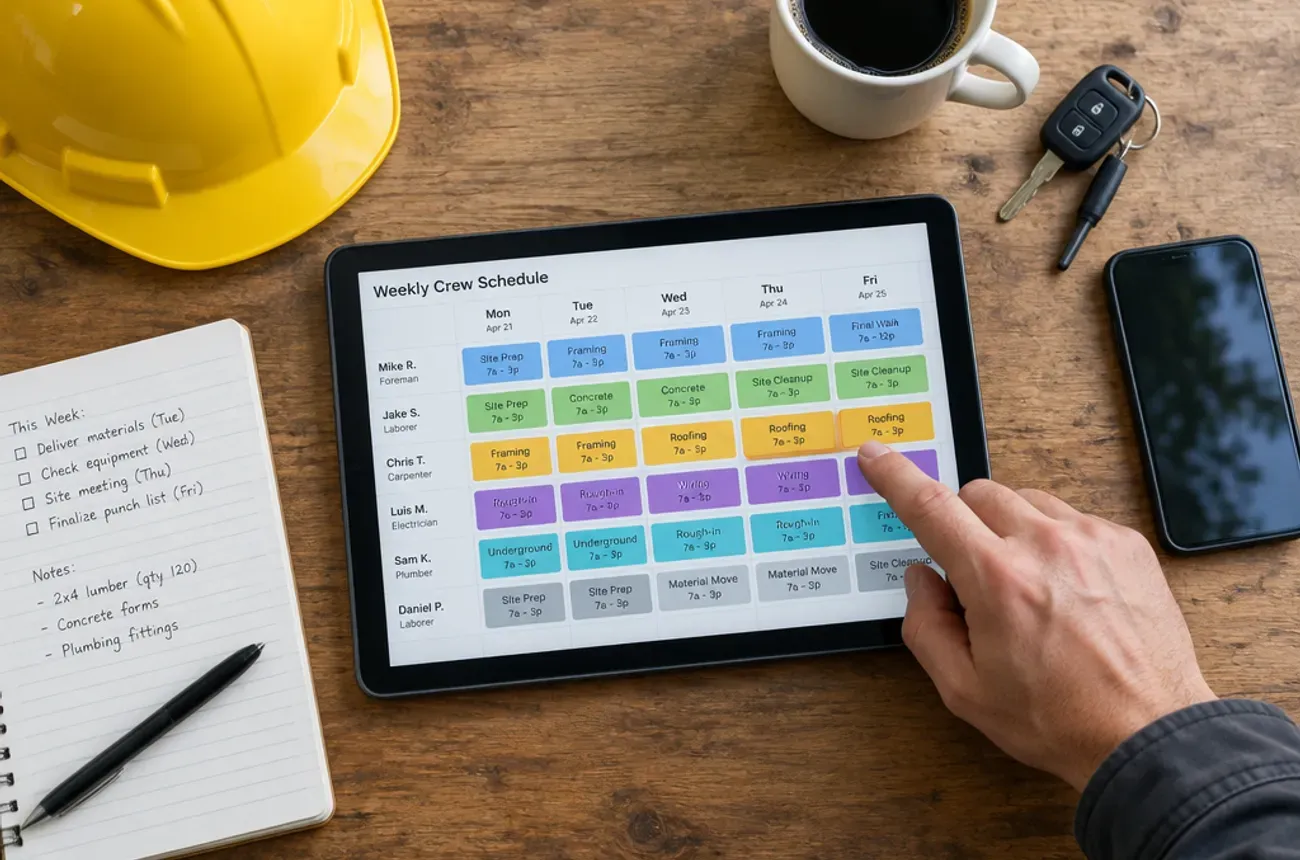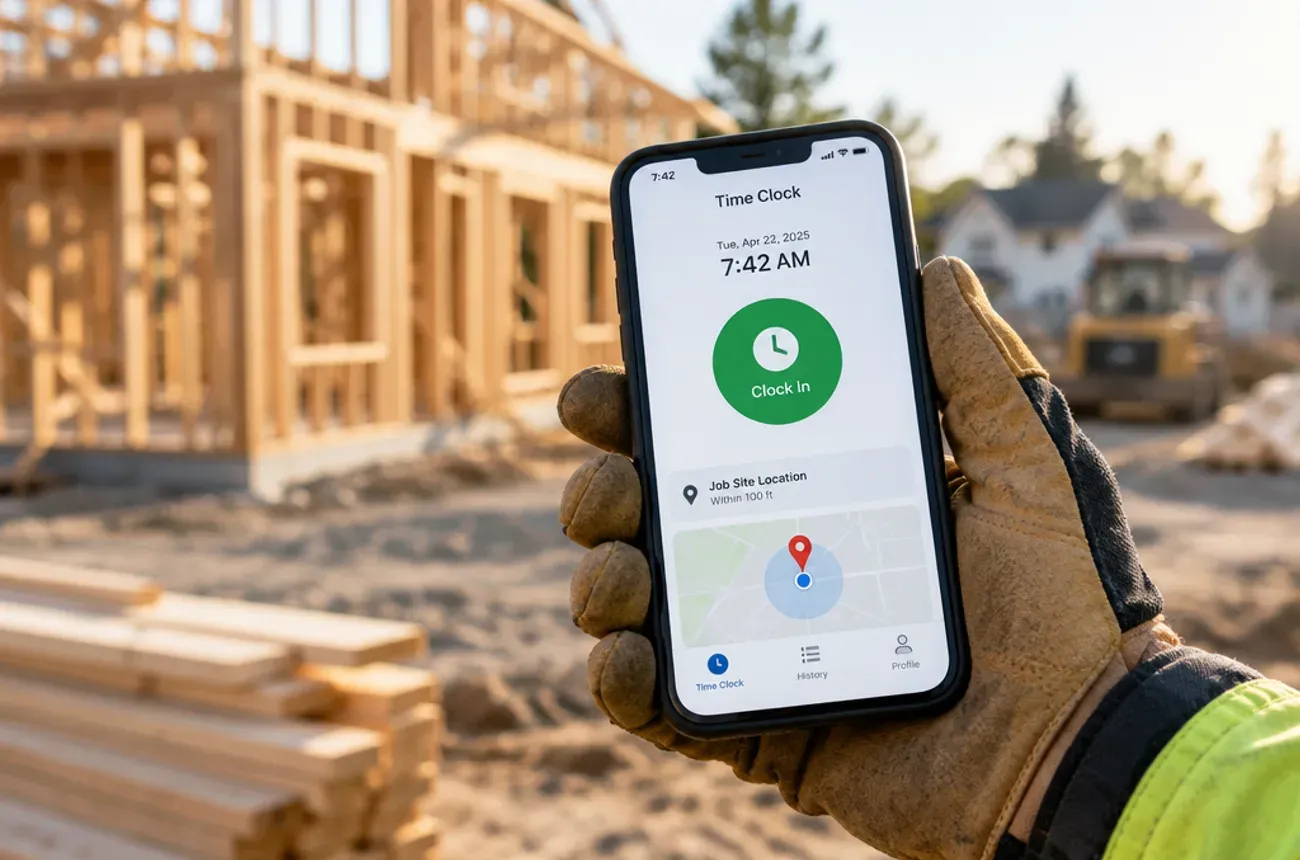
To log crew hours per job without paper timesheets or buddy punching, have each worker clock in on their own phone at the job site, switch jobs in the app when they move, and have the crew lead approve the day’s hours before they reach payroll. GPS location on each clock-in makes the hours provable, and job tags make them usable for job costing.
Paper timesheets filled out on Friday from memory are where small contractors lose labor money they can’t see. This guide shows where that leakage comes from, how to stop buddy punching, the wage rules to get right, and what to look for in a construction time tracking app.
Labor leakage: paying for hours you can’t prove
Labor leakage is paid time you can’t tie to work on a job. It rarely comes from one bad employee. It comes from small, honest-looking gaps that nobody records.
| Where it leaks | How it shows up |
|---|---|
| Timesheets filled in from memory | “About 7 to 3:30” every day, rounded up |
| Buddy punching | A coworker clocks in someone who is still on the way |
| Start and end at the shop instead of the site | Loading time, coffee, and traffic paid at job rates |
| Supply runs and drive time | Real work, but billed to no job or the wrong one |
| Long breaks | Lunch that runs 50 minutes on a 30-minute schedule |
What 15 minutes a day costs
Take a five-person crew with 15 unaccounted minutes per person per day, over 250 working days, at the $42.42 loaded hourly cost from our labor burden guide:
| Step | Value |
|---|---|
| Unaccounted hours per year | 5 people x 0.25 hours x 250 days = 312.5 hours |
| Loaded cost per hour | $42.42 |
| Yearly cost | about $13,300 |
That is about the net profit on two of the $64,000 kitchens in our pricing guide. And because those hours were never tagged to a job, your job costing can’t show you where they went.
Buddy punching and time theft: how to stop them
Buddy punching is when one worker clocks in or out for another. Time theft is the broader term for being paid for time not worked, from padded timesheets to long breaks. Most of it happens because the system makes it easy, not because your crew is dishonest.
| Control | What it does | What it stops |
|---|---|---|
| Individual login on each worker’s phone | Every punch belongs to one person | Clocking in for someone else |
| GPS stamp on clock-in and clock-out | Records where each punch happened | Clocking in from home or the truck |
| Geofence around each job site | Flags or blocks punches outside the site area, or reminds workers who arrive and forget | Shop and driveway clock-ins; forgotten punches |
| Photo at clock-in (optional) | Confirms who is clocking in | Buddy punching on shared devices |
| Crew lead approval each day | A second set of eyes while the day is fresh | Padded and missing hours |
Keep it fair
- Write a short policy. When to clock in, how breaks work, what counts as travel, and that location is recorded only while clocked in.
- Explain it before rollout. Crews accept tracking much faster when they hear it also protects them: every hour they work gets paid.
- Fix mistakes quickly. A missed punch corrected the same day keeps trust; one argued about on payday doesn’t.
How to log hours per job, from clock-in to payroll
The goal is one record per worker per job per day, approved while everyone still remembers the day.
- Clock in at the site. Each worker picks the job, and the phase if you track phases, on their own phone. GPS records the location.
- Switch jobs when you move. Leaving one site for another means clocking into the next job, or into travel if your policy tracks it separately.
- Log breaks. Unpaid meal breaks are recorded as breaks, not left to memory.
- Clock out before leaving the site. Geofence reminders catch the ones who forget.
- Crew lead approves the day. Before going home, the lead checks the crew’s hours, fixes missed punches, and adds a note on anything unusual.
- Office approves the week. On Monday, the office reviews flagged punches and overtime and locks the week.
- Approved hours go to payroll. The same hours, already tagged by job, feed job costing.
- Compare hours to the budget. Once a week, check each job’s labor hours against the estimate while there is still time to act.
Steps 5 and 6 matter most. Hours approved the same day are accurate; hours reconstructed on Friday are guesses.
Rules to get right: travel, breaks, overtime, and GPS
Tracking hours accurately also means paying for the right ones. Under the federal Fair Labor Standards Act, as summarized in the Department of Labor’s Fact Sheet #22 and 29 CFR 785.38:
| Situation | Paid time under federal rules? |
|---|---|
| Driving from home to the first job site | No, ordinary commuting is not hours worked |
| Driving from one job site to another during the day | Yes |
| Reporting to the shop to get instructions or load tools, then driving to the site | Yes, the drive from the shop counts |
| Short rest breaks, usually 20 minutes or less | Yes |
| A meal break of 30 minutes or more, fully off duty | No |
| Stretching an authorized break, after you’ve clearly told crews the limit | Generally no |
| Hours over 40 in a workweek for nonexempt workers | Yes, at time and a half |
States can add their own rules, such as daily overtime or required meal breaks, so check your state labor department too.
Tell crews about GPS
Track location only while workers are clocked in, put that in your written policy, and get each worker’s signed acknowledgment. Some states require written notice before employers use electronic monitoring, so check your state’s rules or ask your employment attorney. This section is general information, not legal advice.
What to look for in a construction time tracking app
A good app is one your crew will actually use at 6:45 a.m. with gloves on. Check for these:
- Clock-in by job, and by phase if you need it, in two taps
- GPS stamp on every punch, recorded only while on the clock
- Geofence reminders when a worker arrives at or leaves a site without punching
- Job switching for workers who move between sites in a day
- Crew clock-in by the lead for workers without a smartphone, with each person listed
- Break tracking that matches your break policy
- Daily approval by the crew lead and weekly approval by the office
- Overtime alerts before a worker crosses 40 hours
- Works with weak signal, saving punches and syncing later
- Hours feed job costing and payroll without retyping
- Available in Spanish if part of your crew prefers it
Questions to ask in a demo
- Show me a worker who forgets to clock out. How do I find it and fix it?
- Show me a day with two job sites and a supply run. Where does each hour land?
- Show me last week’s hours for one job next to that job’s labor budget.
Where MotionOps fits
MotionOps tracks time where the work happens, for contractors whose jobs run for days or weeks:
- Field time tracking with GPS, by job, from each worker’s phone
- Approval workflows so hours are checked before they reach payroll and invoices
- Timesheets and payroll prep from the same approved hours
- Job profitability that shows each job’s labor against its budget
- Scheduling, job notes, and photos in the same app, so crews see where they’re going and what to do
- App available in English and Spanish
Try MotionOps free for 14 days and run next week’s payroll from approved, job-tagged hours.