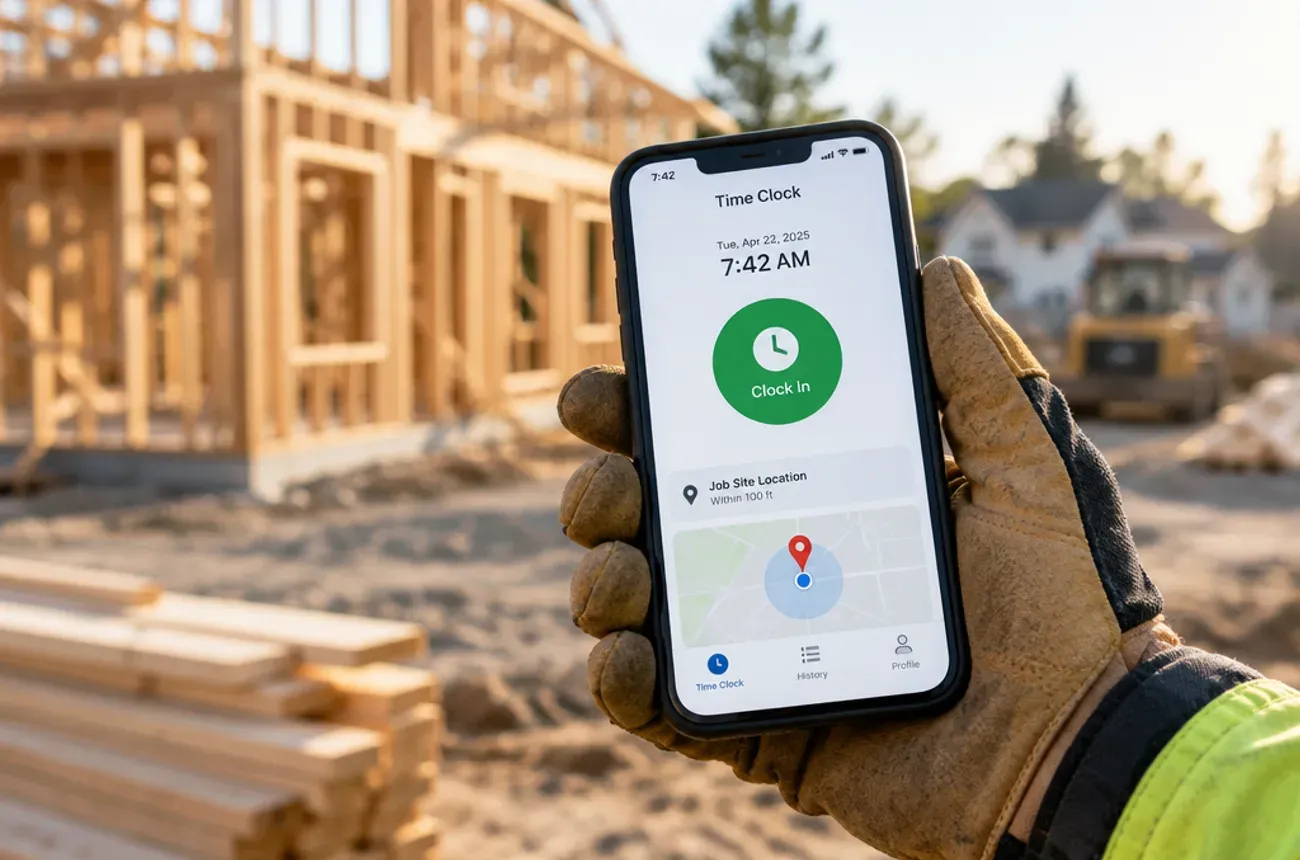
QuickBooks is accounting software, so remodelers should run the money in it and run the jobs somewhere else. Keep the books, bills, payroll, taxes, and financial reports in QuickBooks; keep estimates, schedules, change orders, crew time on site, photos, and job progress in a field app built for contractors, and send only the finished financial records across.
Most messy QuickBooks files come from trying to make it do both. This guide shows what belongs where, why bookkeepers dread contractor files, what to keep out of QuickBooks entirely, and a clean setup that makes job costing work.
Which QuickBooks contractors use in 2026
For most remodelers, the answer is QuickBooks Online Plus, because it is the lowest plan that tracks profitability by project. Desktop is no longer an option for new buyers unless they go to Enterprise.
| Version | Price (list, US) | For a remodeler |
|---|---|---|
| QuickBooks Online Simple Start | $38/mo, 1 user | Invoicing and basic books; no project profitability |
| QuickBooks Online Essentials | $85/mo, 3 users | Adds bills and time tracking; still no project profitability |
| QuickBooks Online Plus | $140/mo, 5 users | Projects and profitability by project; the usual choice |
| QuickBooks Online Advanced | $340/mo | For larger teams that need more users and reporting |
| QuickBooks Desktop Enterprise | Annual subscription | The only Desktop edition still sold to new US customers; has a contractor edition |
Prices are list prices after Intuit’s August 2026 increase, per Intuit’s product page and Tech.co; Intuit often discounts the first three months.
What happened to “QuickBooks Contractor Edition”?
The Contractor Edition most contractors remember was part of QuickBooks Desktop Premier. Intuit stopped selling new US subscriptions to Desktop Pro Plus, Premier Plus, and Mac Plus on September 30, 2024, and the 2023 versions lost support on May 31, 2026. Existing subscribers can still renew on the 2024 version, which is supported until September 30, 2027, according to an Intuit support reply and Method’s summary. New buyers who want Desktop must buy Enterprise.
What to run in QuickBooks vs. in your field app
The rule of thumb: if it happens on the job, it starts in the field app; if your accountant needs it for taxes or financial statements, it ends in QuickBooks.
| Task | Field app | QuickBooks |
|---|---|---|
| Leads, estimates, and proposals | Yes | No |
| Signed contracts and change orders | Yes | Only the approved amounts, through invoices |
| Crew and sub scheduling | Yes | No |
| Time clock, by job | Yes | Payroll totals by job |
| Job photos, notes, checklists, punch lists | Yes | No |
| Customer updates and portal | Yes | No |
| Progress invoices | Created from the job | Recorded, with payments |
| Customer payments | Collected | Recorded and reconciled |
| Supplier bills and receipts | Captured on site, tagged to the job | Entered as bills or expenses, tagged to the project |
| Payroll and payroll taxes | No | Yes |
| Bank reconciliation | No | Yes |
| Sales tax, 1099s, financial statements | No | Yes |
| Job profitability | During the job, for decisions | After the job, for the books |
When each system does its own job, the field team never has to learn accounting, and your bookkeeper never has to chase a crew lead for a receipt.
Where QuickBooks falls short for remodelers
QuickBooks is very good at what it is built for: an accurate ledger your accountant can trust. It is not built for running a remodel day to day.
- It sees jobs through transactions. A job’s numbers appear once bills, payroll, and invoices are entered. That is usually days or weeks after the money was spent, which is too late to fix a job that is running over.
- Your own labor is the hardest cost to get right. Crew hours have to be tracked by job and carried into payroll before they show up in job costs. Time tracking is a separate paid product, QuickBooks Time, on top of your plan.
- It doesn’t schedule crews or subs. There is no crew board for multi-week projects, phases, or sub start dates.
- The field team shouldn’t be in your books. Each user counts against your plan’s limit (5 on Plus), and giving crew leads access to the company’s finances is a risk most owners avoid.
- Homeowner communication lives elsewhere. Selections, photo updates, punch lists, and job notes don’t have a natural home in an accounting file.
None of this is a flaw in QuickBooks. It is a sign that job management needs its own tool, connected to QuickBooks rather than crammed into it.
Why your bookkeeper hates your QuickBooks file
Bookkeepers rarely mind the work; they mind cleaning up the same mistakes every month. These are the ones they see most in contractor files:
| The mess | Why it hurts | The fix |
|---|---|---|
| Costs not tagged to a job | Job reports show revenue but almost no cost, so every job looks profitable | Tag every bill, receipt, and payroll entry to a project |
| The same customer three ways | “John Smith,” “Smith Kitchen,” and “J. Smith” split one job’s history | One customer per client, one project per job |
| Job materials in overhead accounts | Gross margin looks low and overhead looks high | Use cost of goods sold accounts for job materials, subs, and direct labor |
| Deposits with no matching invoice | Unapplied payments pile up and nobody knows what’s owed | Invoice the deposit, then receive the payment against it |
| Change orders never invoiced on their own | Billed totals don’t match the signed contract | Invoice each approved change order, or add it as its own line |
| Personal and business spending mixed | Hours spent sorting, plus tax risk | Separate business accounts and cards |
| Receipts that never arrive | Card charges sit uncategorized for months | Capture receipts on site, tagged to the job, the day they’re spent |
| Subs paid with no W-9 on file | A scramble every January for 1099s | Collect a W-9 before the first payment |
Almost every row starts in the field: a receipt not captured, a job not tagged, a change order not billed. That is why the fix is a field process, not more hours in QuickBooks.
What to keep out of QuickBooks
A clean QuickBooks file holds finished financial records, not the work in progress. Keep these out:
- Draft estimates and proposals that haven’t been signed. They clutter customer lists and reports. Send only won jobs across.
- Every revision of a change order. QuickBooks needs the approved amount, not the back-and-forth.
- Schedules, crew assignments, and daily logs. They change daily and have no accounting meaning.
- Job photos, punch lists, and homeowner messages. They belong with the job, where the crew can see them.
- Leads and prospects. A customer record should mean a customer.
- Minute-by-minute time punches. Payroll and job costing need approved hours by job, not every clock-in.
- Crew logins. Field staff get access to the field app, not to the company’s books.
The test for anything new: will your accountant need this to close the month or file taxes? If not, it belongs in the field app.
A clean QuickBooks setup for remodelers
Job costing in QuickBooks only works if direct job costs and overhead land in different places. A simple chart of accounts gets you most of the way. Have your accountant adapt it to your business.
| Section | Accounts |
|---|---|
| Income | Remodeling revenue; service and repair revenue (if you do both) |
| Cost of goods sold (job costs) | Job materials; subcontractors; field labor; field payroll taxes and workers’ comp; job equipment rental; permits and disposal |
| Overhead (operating expenses) | Office salaries; owner’s salary for non-field work; rent; vehicles and fuel; insurance; marketing; software; accounting and legal |
Setup checklist
- Turn on Projects (QuickBooks Online Plus or Advanced)
- One customer per client, and one project per job under that customer
- Tag every bill, expense, and payroll entry for field labor to a project
- Use classes only if you run separate divisions, such as remodeling and service
- Invoice deposits, progress payments, and change orders; receive payments against them
- Capture receipts weekly at the latest, tagged to the job
- Reconcile bank and card accounts every month
- Review the project profitability report once a month, after reconciliation
For a step-by-step walkthrough, see our guide to tracking job costs in QuickBooks Online.
How the field app and QuickBooks should connect
The two systems should share records, not jobs. Only four kinds of finished financial records need to cross into QuickBooks:
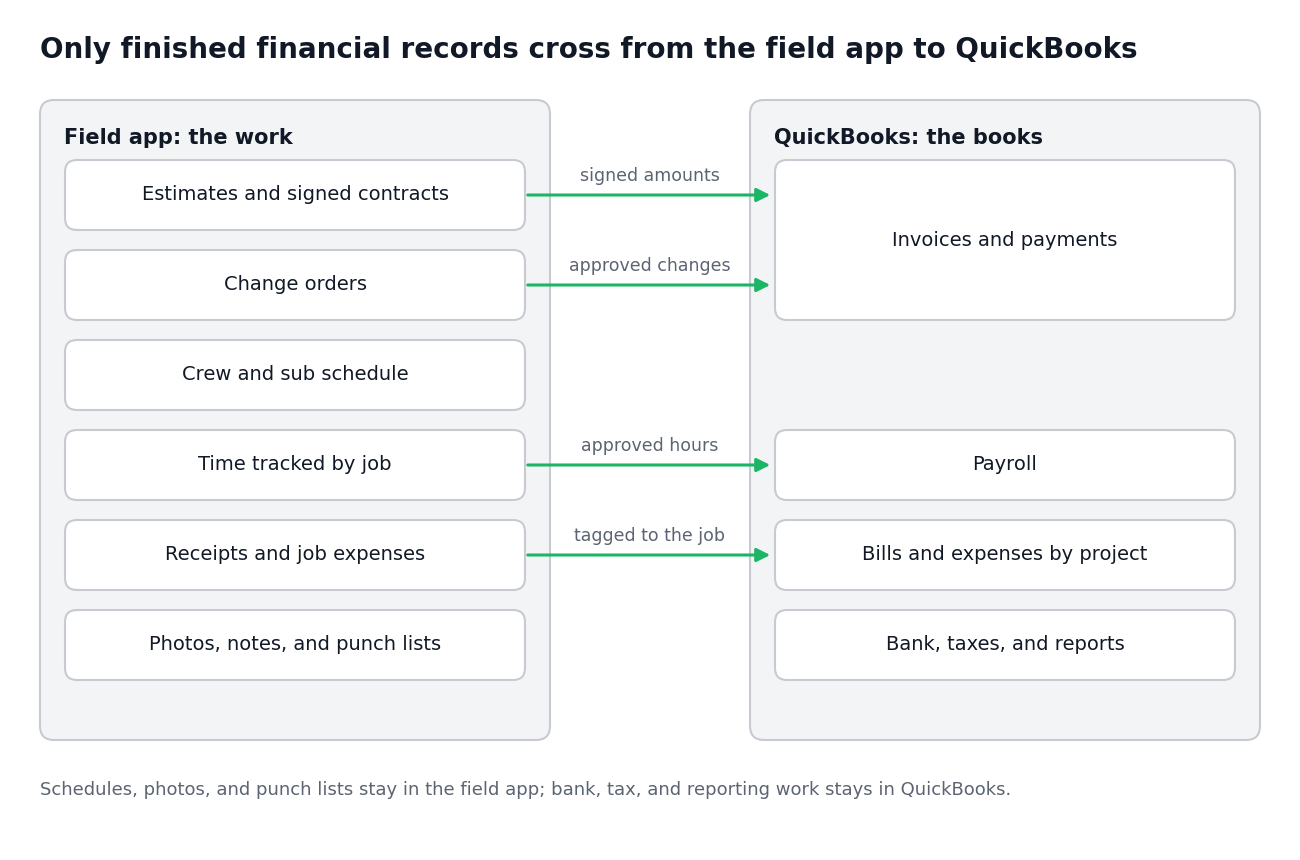
If your field app syncs these automatically, nobody retypes invoices or timesheets. If it doesn’t, set a weekly routine where the office moves approved records across in one sitting, already tagged to the job.
Where MotionOps fits
MotionOps is the field side of that setup, built for contractors whose jobs run for days or weeks. It captures the work where it happens, so the records that reach your books are complete and tagged to the right job:
- Proposals, contracts, and change orders signed electronically
- Scheduling by crew availability and skills
- Time tracking by job, with GPS, plus payroll prep
- Materials, expenses, and receipts captured from the field and tied to the job
- Invoices and payments, with a customer portal link for the homeowner
- Job profitability while the job is still running
Try MotionOps free for 14 days and keep the job work out of your books.