To keep track of photos and notes on a construction project, take them in one app, attach every photo and note to the job it belongs to, and tag each one by phase and date the moment you take it. Then follow a short shot list at each phase and finish every day with a two-minute daily log.
Photos in a crew lead’s camera roll and notes in a group text feel organized until you need them: a change order dispute, a hidden-condition question, or a homeowner who says the damage wasn’t there before. This guide covers why job photos matter, what to photograph at each phase, how to organize photos and notes so you can find them, and what to look for in a construction photo app.
Why job photos and notes matter
A dated photo tied to a job settles most arguments before they start. On a remodel that runs for weeks, it also does work you’d otherwise do by phone.
- Change orders. A photo of rot behind the tile, taken before you touch it, is what makes the homeowner sign the change order instead of asking why you didn’t see it in the estimate.
- Hidden conditions. Wiring, plumbing, and framing inside the walls disappear behind drywall. Photos taken before close-up let you, the homeowner, and the next contractor see what is there.
- Damage disputes. A walk-around before demo shows the scratch on the floor or the crack in the driveway was there before your crew arrived.
- Inspections. Photos of rough-ins, insulation, and waterproofing back up what the inspector saw.
- The final payment. Photos of each finished punch list item close the job without a second walkthrough.
- Homeowner updates. A few photos at the end of the day answer “how’s it going?” before the homeowner calls.
- Marketing. Good before-and-after shots become your website, reviews, and social posts.
Notes do the same job for what a photo can’t show: who decided what, when a delivery arrived, why the crew stopped early.
What to photograph at each phase of a remodel
You don’t need hundreds of photos. You need the right ones at the moments that matter. Use this shot list on every job:
| Phase | What to photograph | Why |
|---|---|---|
| Before work starts | A walk-around of the work area and the path in: floors, walls, driveway, fixtures you’re keeping | Proves the condition before your crew arrived |
| Demo | Each wall and floor as it opens up, with a wide shot and a close-up of anything unexpected | Documents hidden conditions before you change anything |
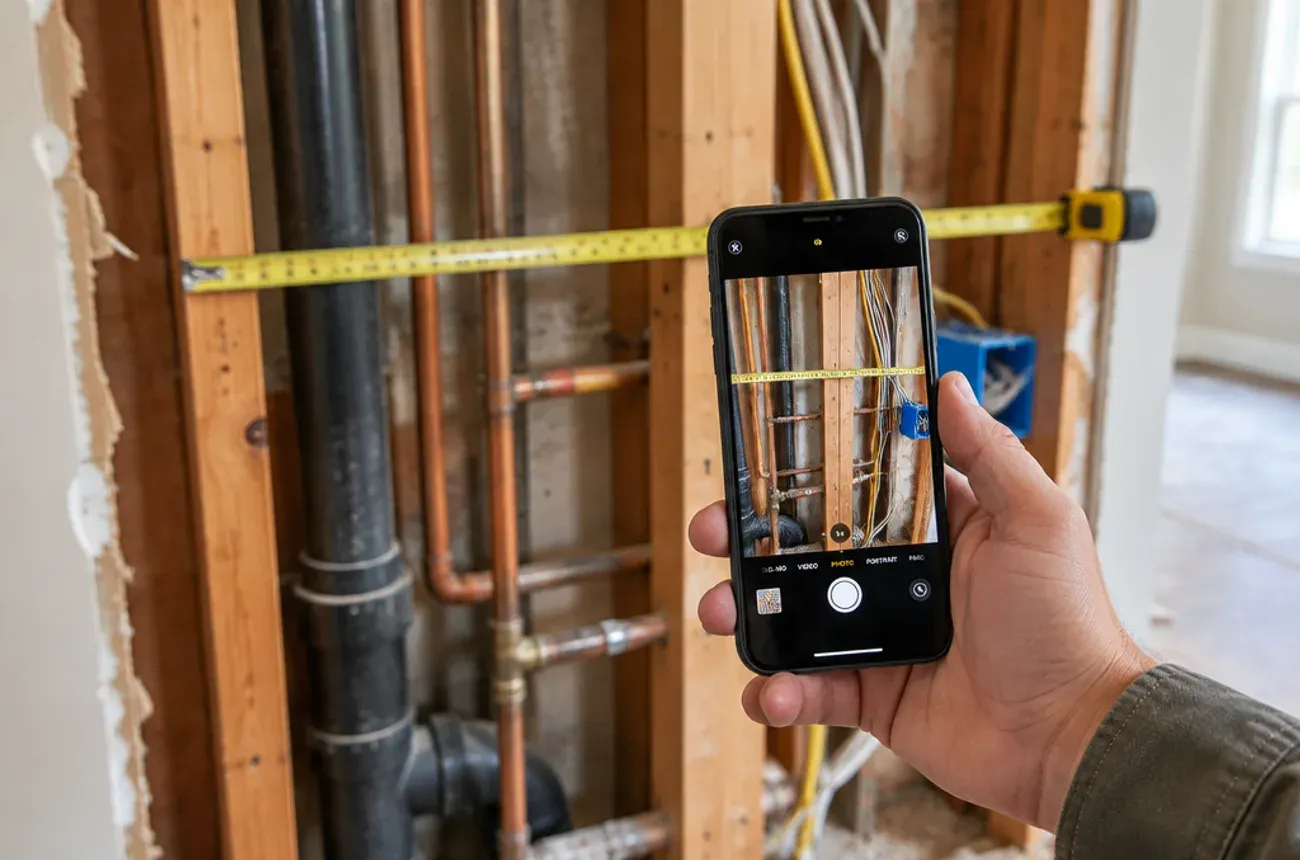
| Rough-in | Plumbing, electrical, HVAC, and framing in every wall and ceiling, with a tape measure in frame for locations | Shows what is behind the drywall, years from now |
| Inspection | The passed inspection card next to the work | Ties the photo to the inspection date |
| Before close-up | Insulation, waterproofing, blocking, and backing for cabinets and grab bars | The last chance to see it |
| Deliveries | Materials on arrival, with labels and any damage | Supports damage claims and allowance math |
| Finishes | Tile layout, cabinet install, countertops, fixtures | Progress updates and quality record |
| Punch list | Each item before and after the fix | Closes items without a second walk |
| Completion | Wide finished shots of every room from the same angles as the “before” photos | Before-and-after for marketing and the job file |
Three habits that make photos useful
- Wide, then close. One shot to show where it is, one to show what it is.
- Put a reference in frame. A tape measure, a stud, or a corner tells you exactly where an outlet or pipe sits.
- Same angle, every phase. Stand in the same doorway for each room’s photos so progress is easy to compare.
How to organize photos and notes so you can find them
The best photo is useless if nobody can find it in six months. A few rules keep every job’s record in one place.
- One place for everything. Every photo and note goes into the same app, attached to the job. No camera rolls, no group texts, no personal Google Drive folders.
- Tag by job and phase. “Miller kitchen, rough-in” is searchable. “IMG_4821” is not.
- Add a one-line caption to anything unusual. “Rot in sill plate behind sink, about 3 ft, sent CO-2.”
- Keep the date, time, and location. Don’t strip them when you export; they are what make a photo evidence.
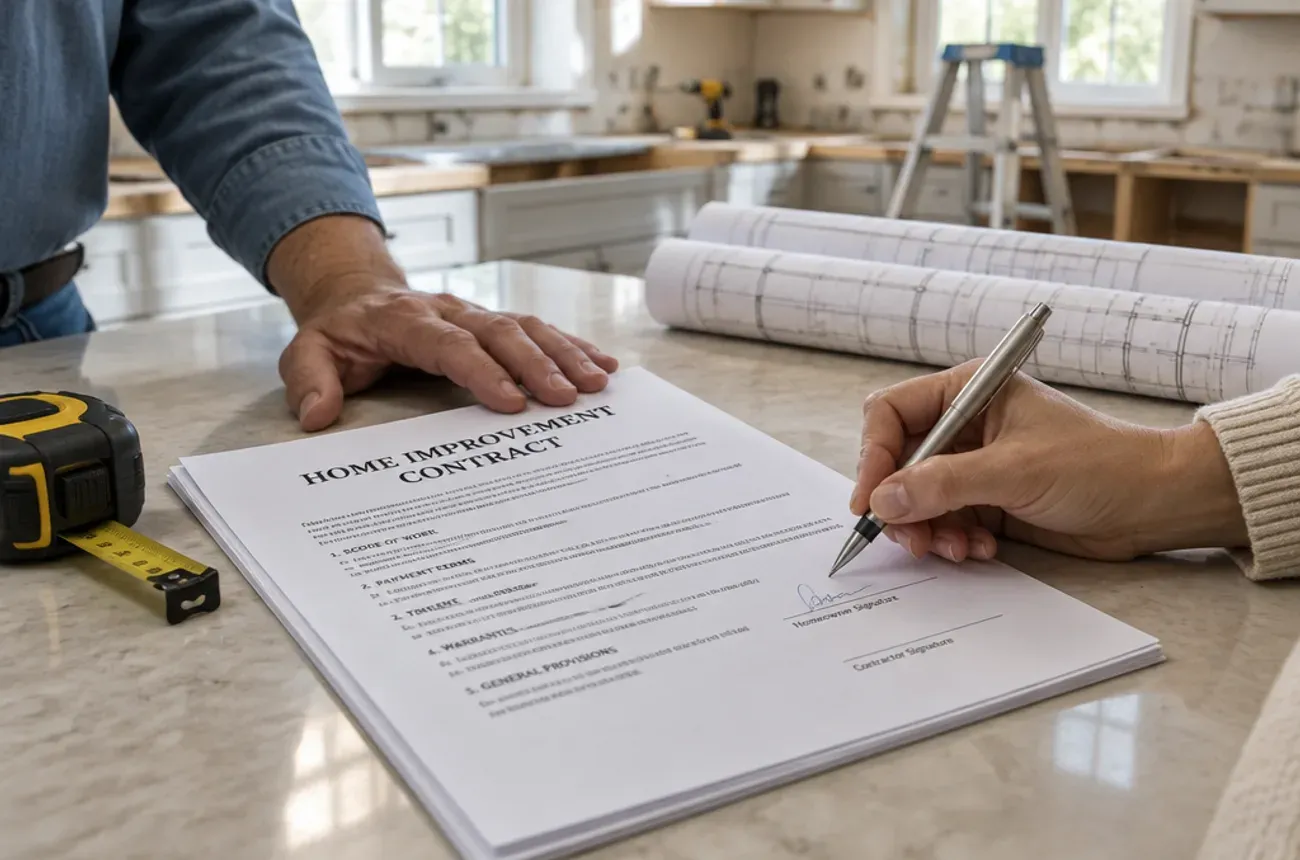
- Link photos to the paperwork they support. Attach hidden-condition photos to the change order and punch list photos to the punch list item.
- Close every day with a daily log. Two minutes, filled in by the crew lead before leaving the site.
Daily log template
| Field | Example |
|---|---|
| Job and date | Miller kitchen, Oct 14 |
| Crew on site and hours | Mike, Luis, Dan; 7:00 to 3:30 |
| Work done today | Finished rough electrical in north wall; started drywall in pantry |
| Subs and deliveries | Plumber 8:00 to 11:00; cabinet delivery 1:00, one door damaged |
| Issues or delays | Damaged door reordered, about 5 days |
| Decisions made with the homeowner | Homeowner chose to add under-cabinet lighting; CO-3 sent |
| Photos attached | 12 (rough electrical, damaged door) |
| Tomorrow | Drywall hang, pantry and hallway |
Ten minutes a week reading the daily logs tells you more about a job than an hour on the phone with the crew.
What to look for in a construction photo app
The right app is the one your crew uses without being reminded. Check for these:
- Photos attach to the job automatically when taken from inside the job, not sorted later
- Date, time, and location stamped on every photo
- Tags or folders by phase, set by the office so the crew picks from a short list
- Captions and markup, so a crew lead can circle the problem and add one line
- Works offline in basements and new builds with no signal, then syncs
- Checklists and daily logs in the same place as the photos
- Photos linked to change orders, punch lists, and invoices, not stored in a separate app
- Easy sharing with homeowners, through a link or portal rather than a pile of texts
- Unlimited or generous storage, since a single remodel can produce hundreds of photos
Stand-alone photo apps work well for documentation alone. If you also run estimates, schedules, and invoices, an app that keeps photos on the same job record saves you from searching two systems.
Where MotionOps fits
MotionOps keeps photos and notes on the job itself, for contractors whose projects run for days or weeks:
- Photos and checklists attached to each job, so the record builds as the work happens
- Job notes the office and the field both see
- Change orders and invoices on the same job, so the photo that justifies a change sits next to the signed change order
- Customer portal links and text updates, so homeowners see progress without calling
- Scheduling and time tracking in the same app, so the crew that took the photos is the crew on the schedule
Try MotionOps free for 14 days and start your next job’s photo record on day one.